
Power BI
To connect Masthead to your Power BI instance, you need to create a service principal and grant it Power BI Admin API access, allowing the Masthead app to access Power BI.
Lineage and details in data dictionary become available within 15-20 minutes after integration.
Create integration
Section titled “Create integration”There are 4 steps to integrate Masthead to Power BI:
Create a service principal app in Azure
Section titled “Create a service principal app in Azure”-
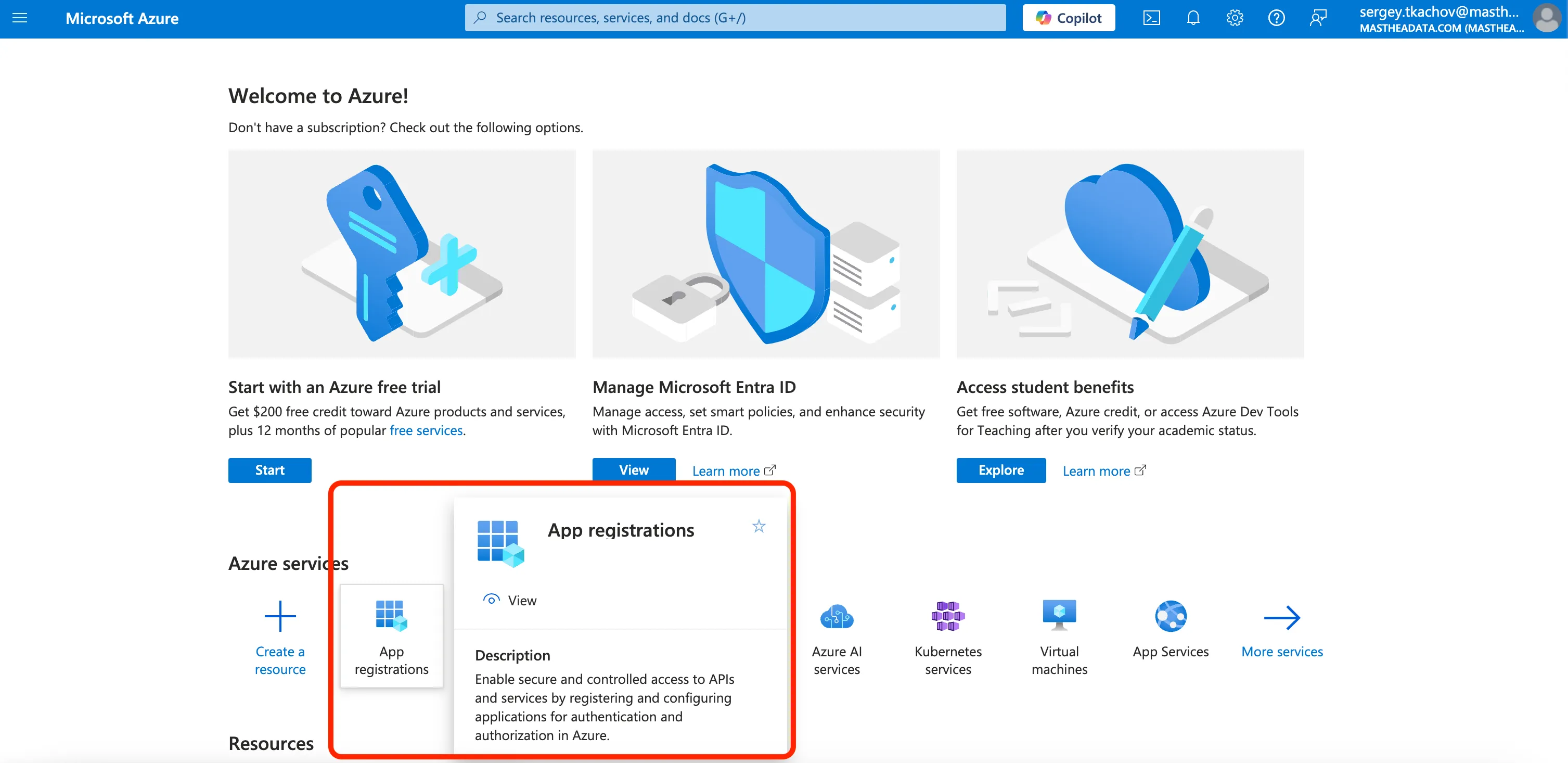
Log in to the Azure Portal, and search for and select App Registrations.
-
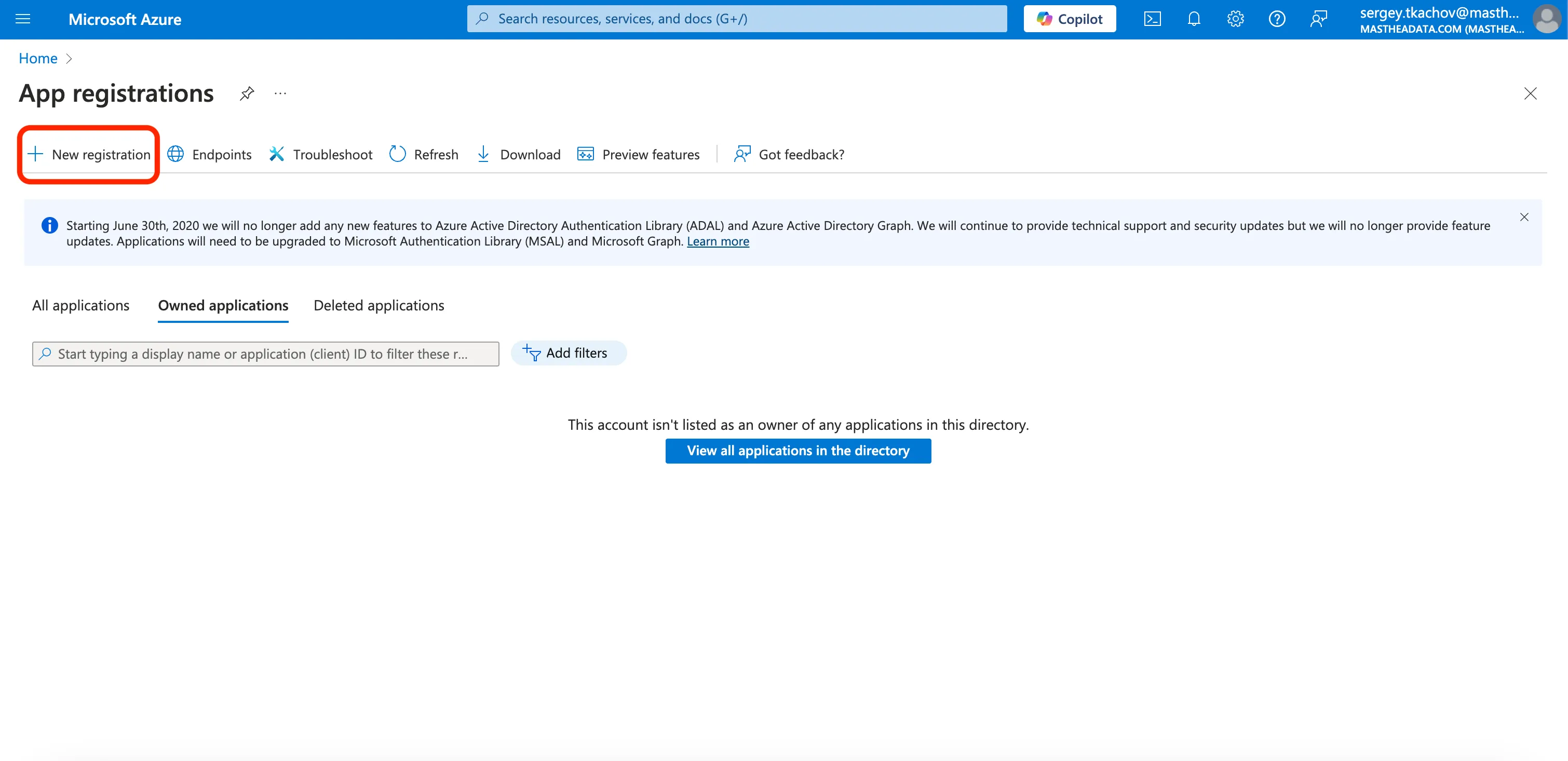
Click New Registration.
-
Name registration
masthead-powerbi-integration-app. Click Register.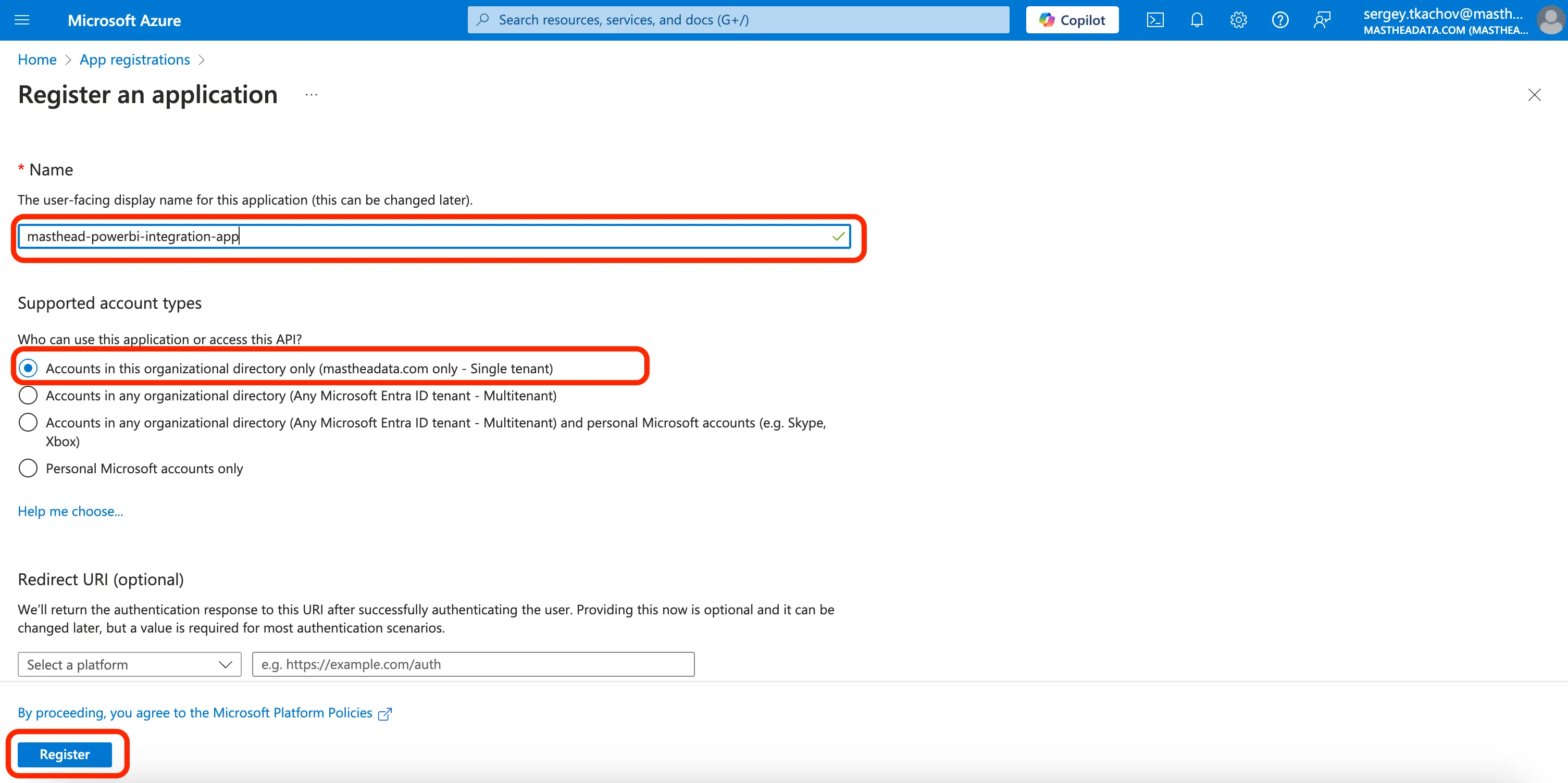
-
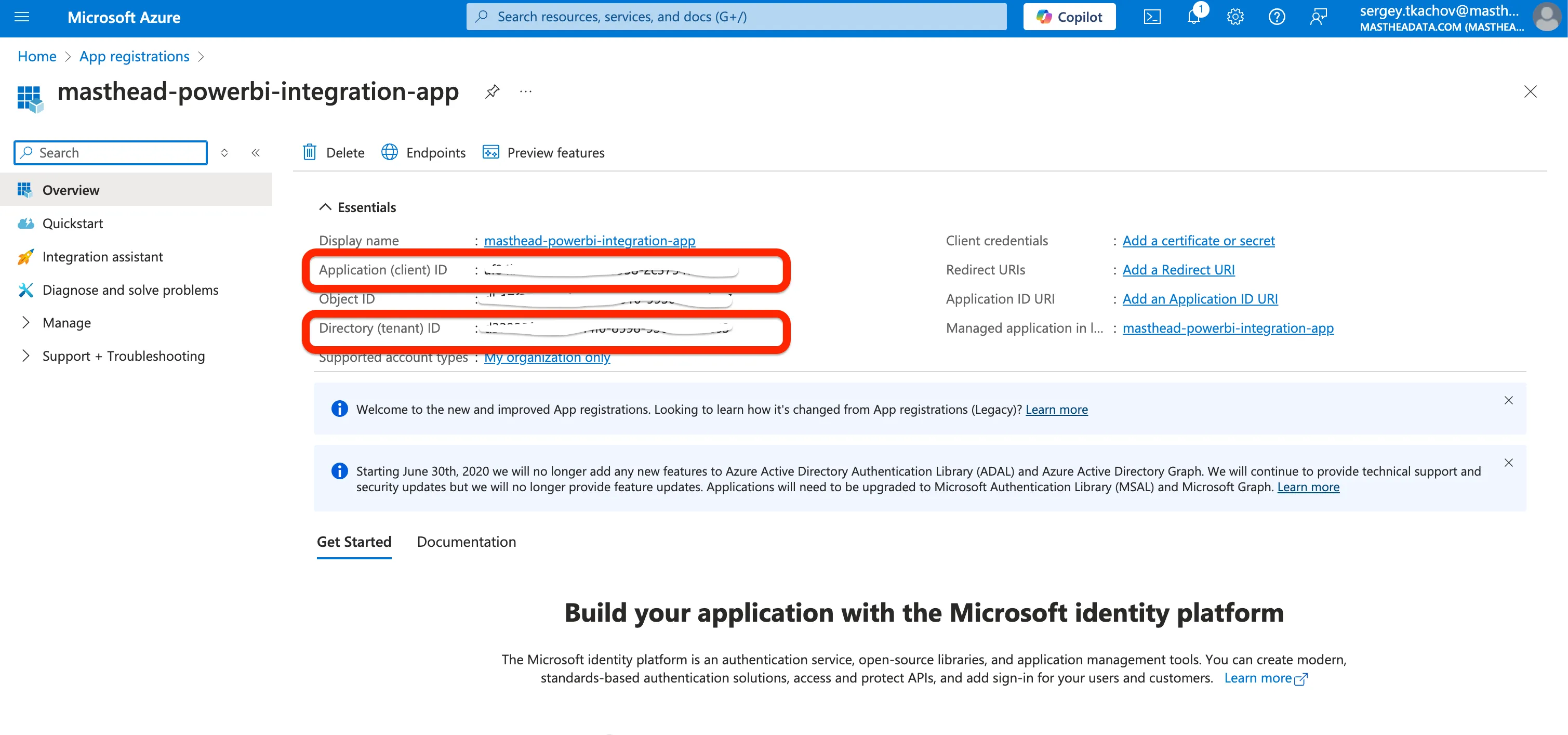
After successful app registration, an Overview page displays app details. Copy the Application client ID and Directory tenant ID values to a secure location. You need these values later.
-
From the Manage menu, click Certificates & secrets. Click New client secret.
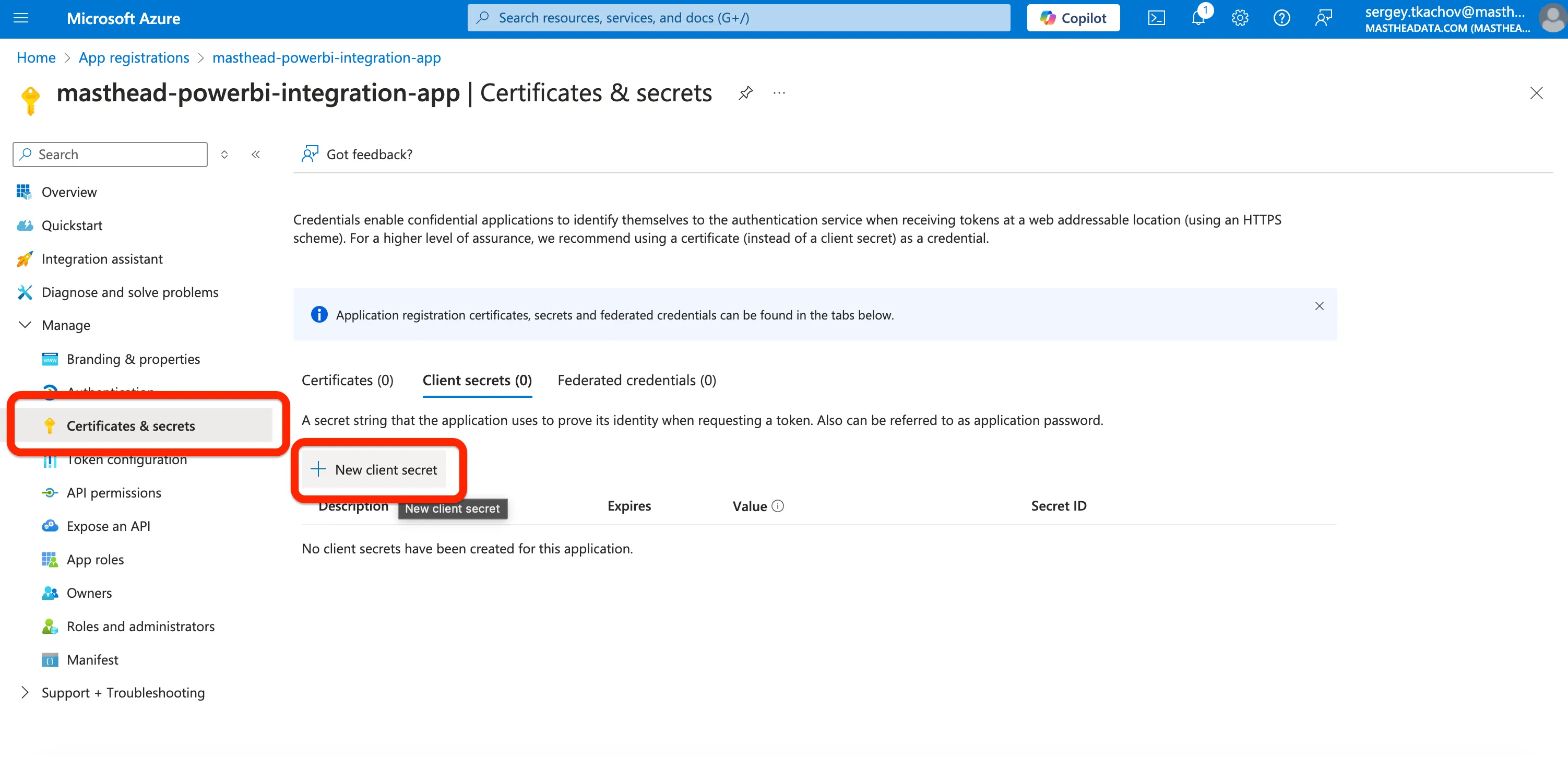
-
Fill the name of the secret as
masthead-powerbi-integration-app-secretand click Add button.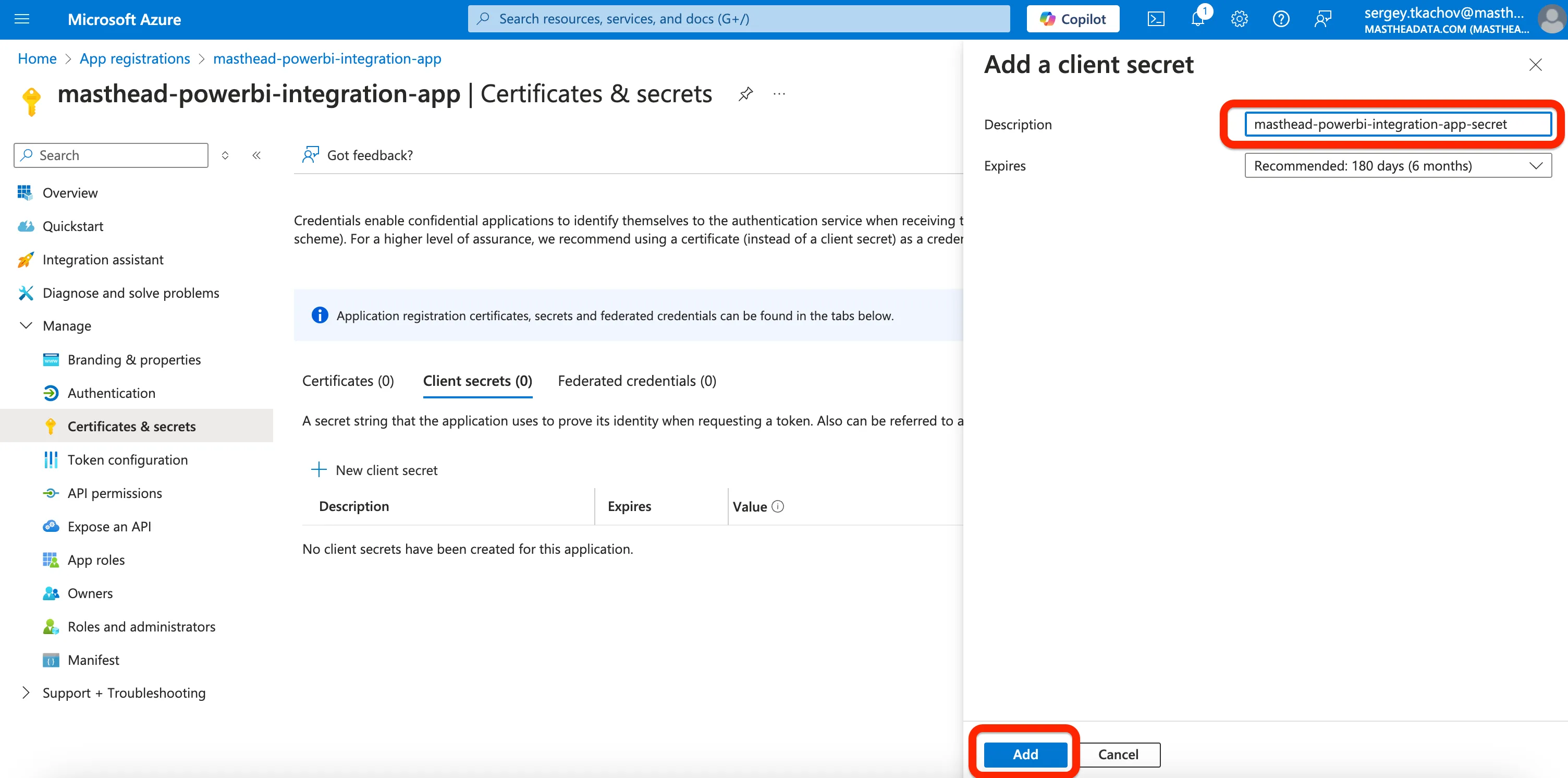
-
After the secret is successfully created, copy the value of the secret to a secure location; you need this value later.
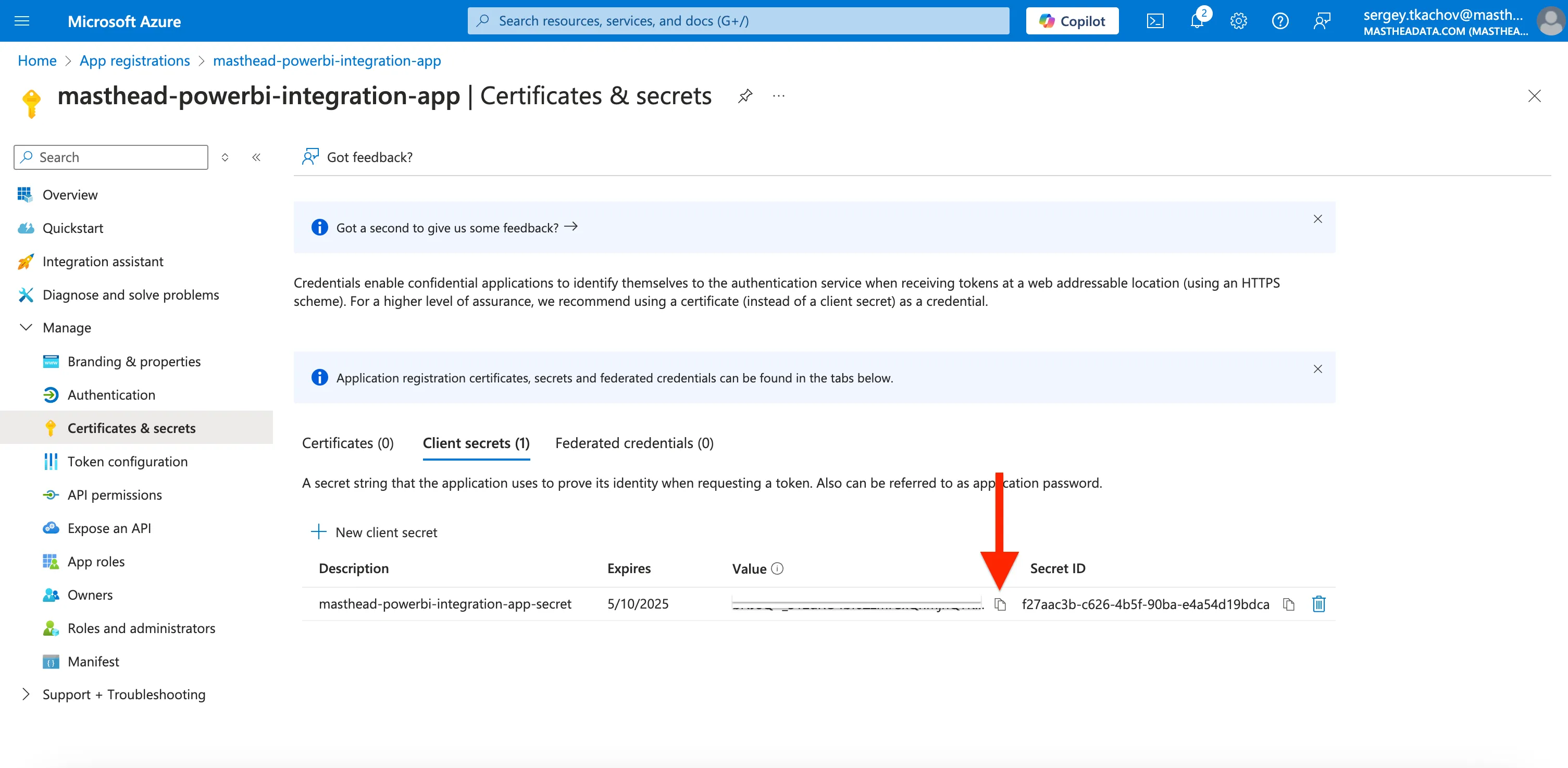
Create Azure Entra ID security group
Section titled “Create Azure Entra ID security group”-
Open Microsoft Entra ID menu
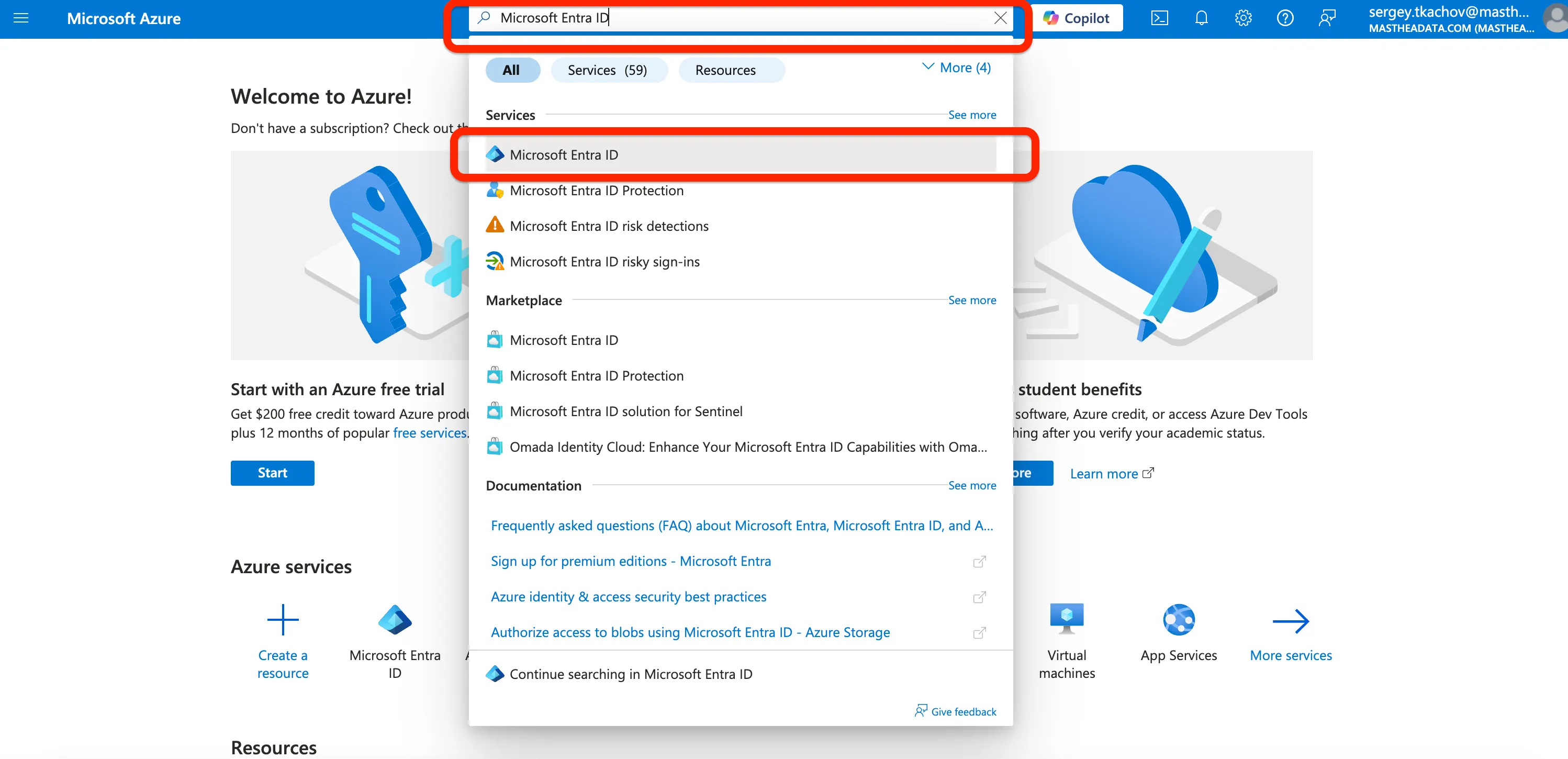
-
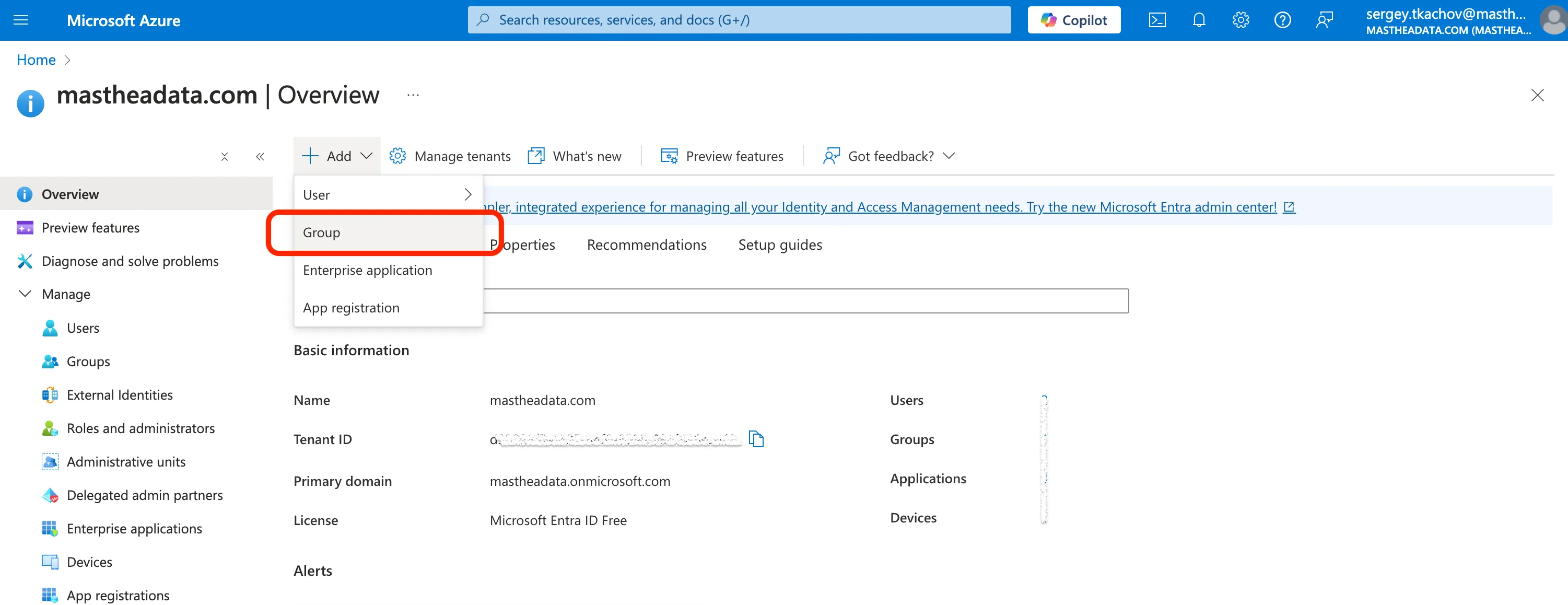
Click Add -> Group button
-
Set Group type -
Security, and Group name -masthead-powerbi-security-group. Click Create.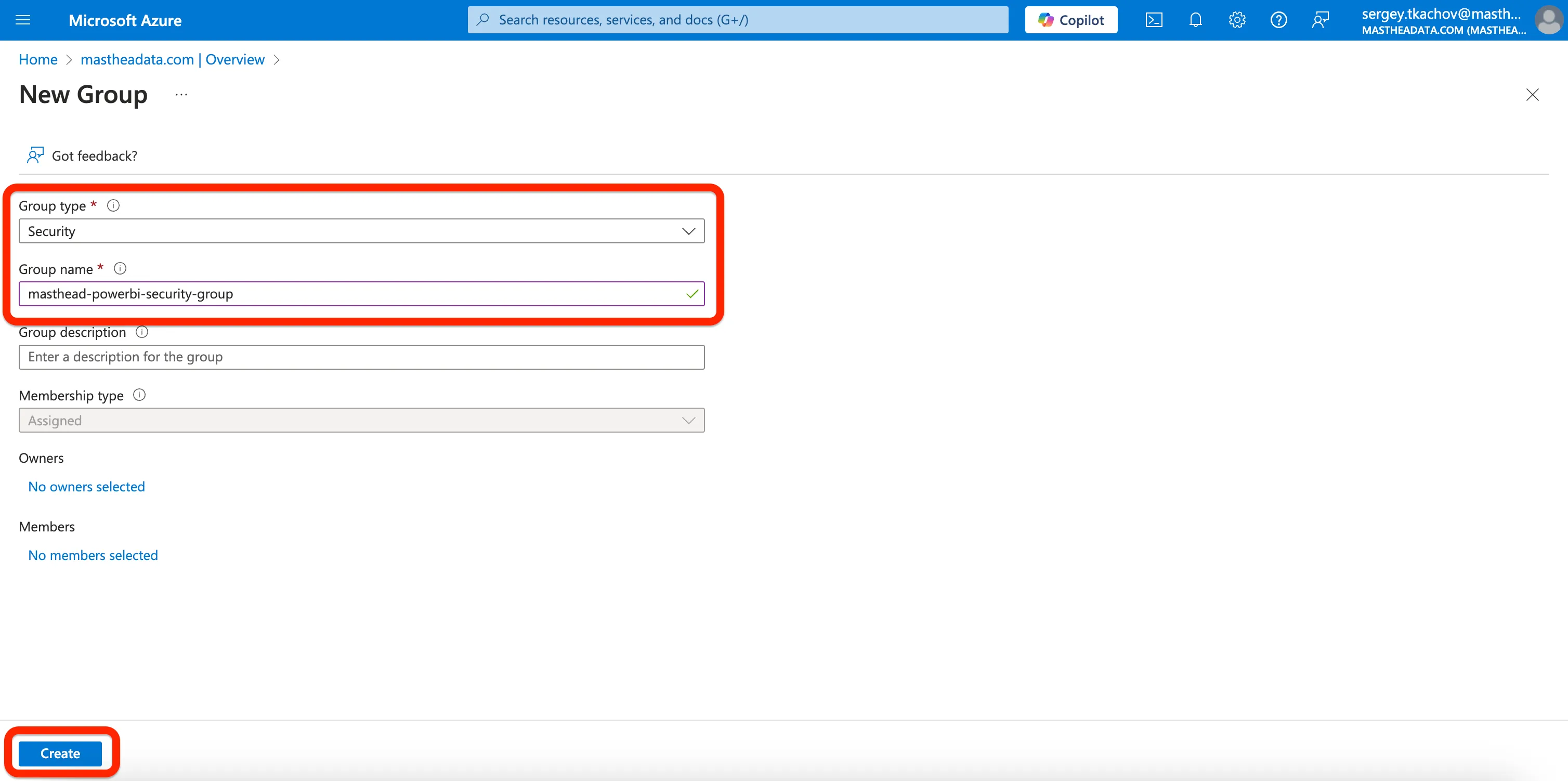
-
Open the newly created group by navigating to Groups > All groups and clicking the
masthead-powerbi-security-groupgroup.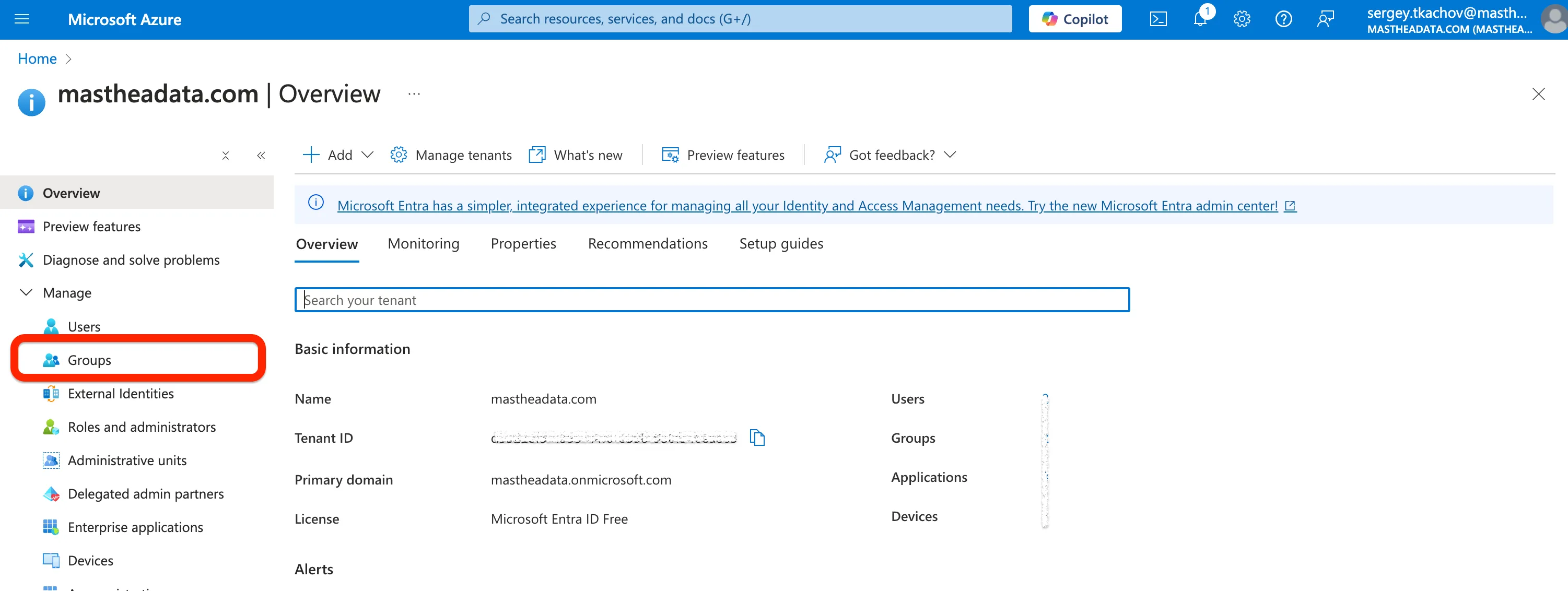
-
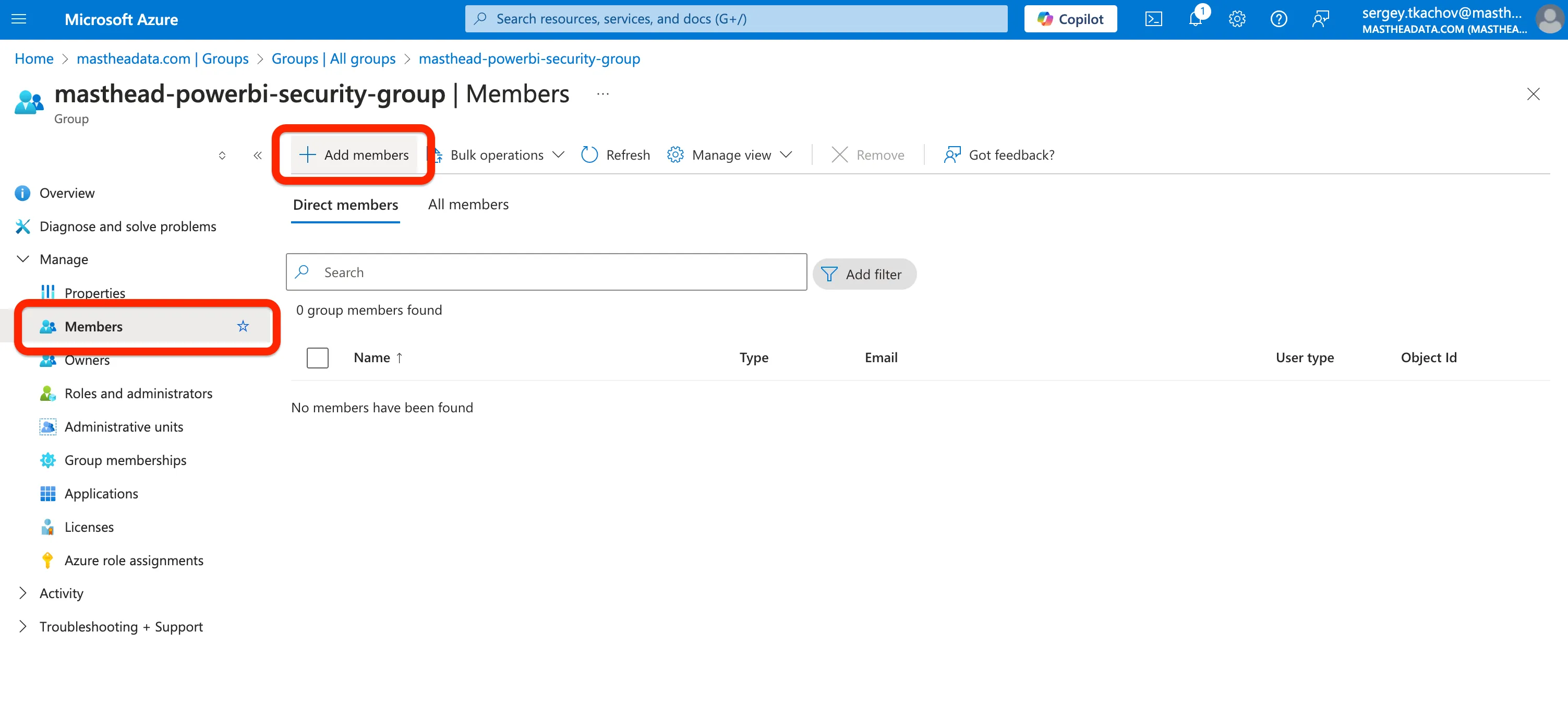
Navigate to the Members menu and click Add members
-
Search for
masthead-powerbi-integration-appand select the checkbox to the left. Click Select.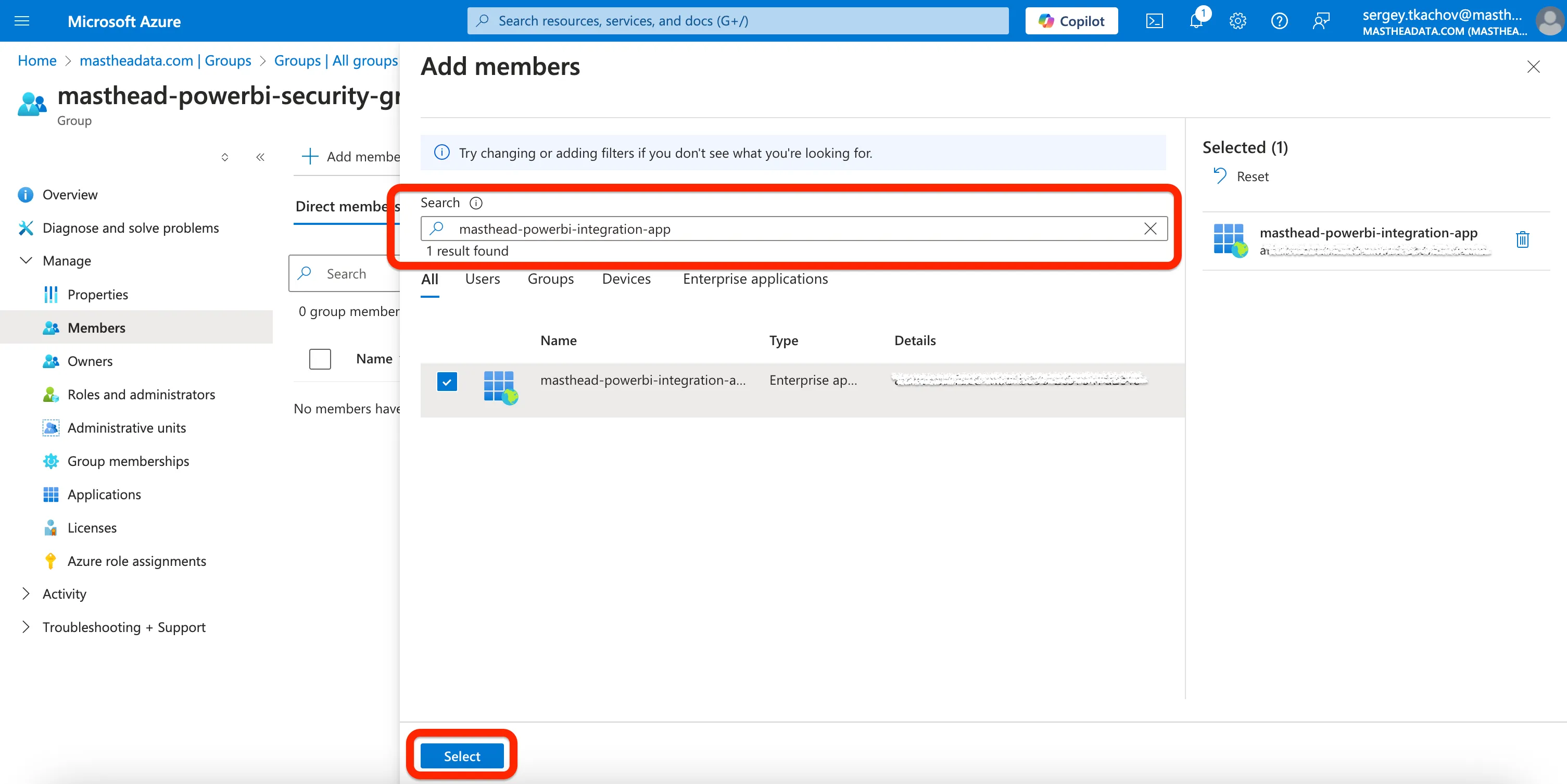
Grant security group the access to Power BI APIs
Section titled “Grant security group the access to Power BI APIs”-
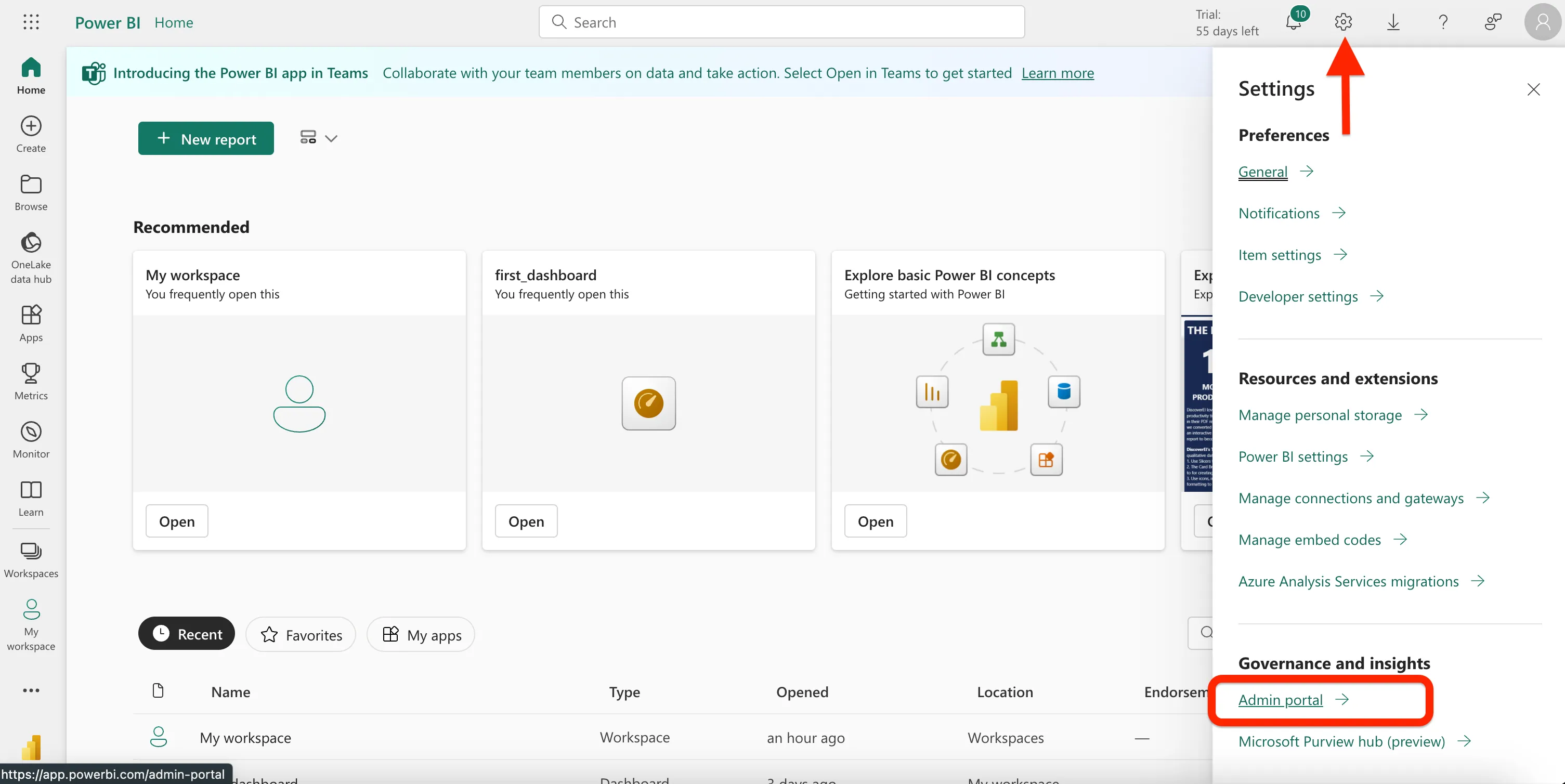
Go to the Power BI Admin portal
-
In Tenant settings, find Developer settings. Open the Service principals can use Fabric APIs and enable it. Select Specific security groups and type the name of the recently created security group
masthead-powerbi-security-group. Click Apply.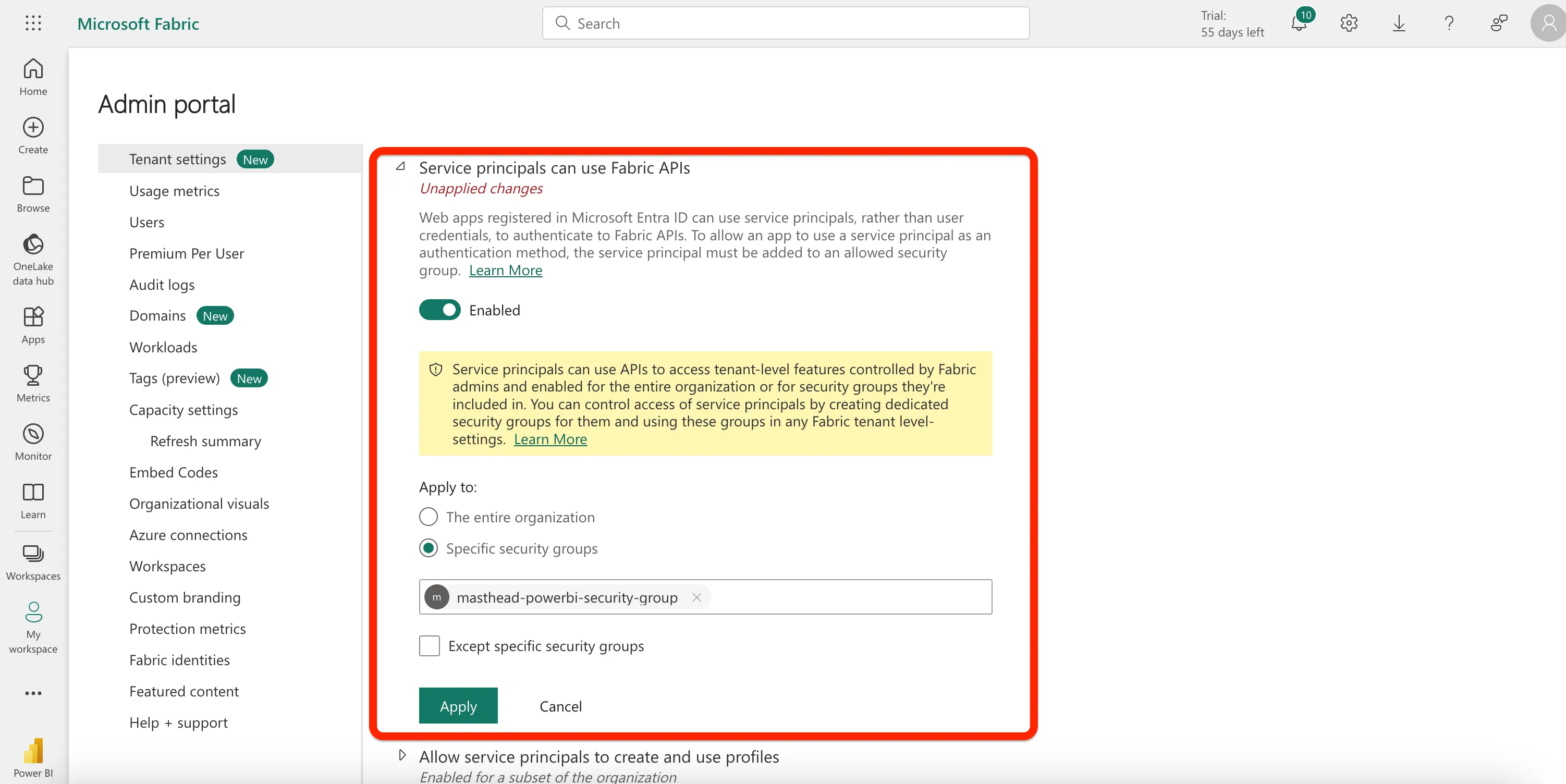
-
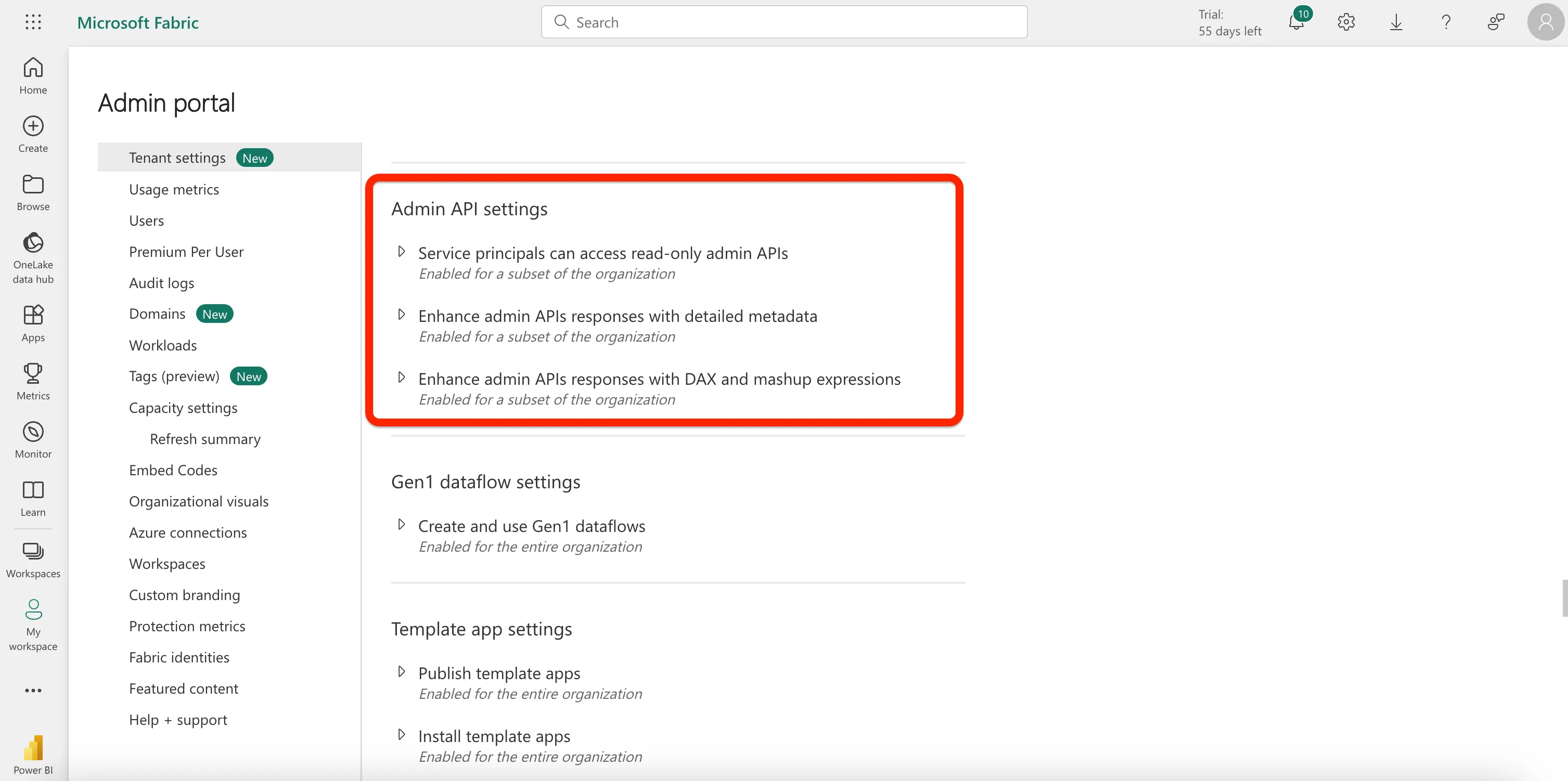
In Tenant settings, find Admin API settings
-
Enable Service principals can access read-only admin APIs, specify security group
masthead-powerbi-security-groupand click Apply.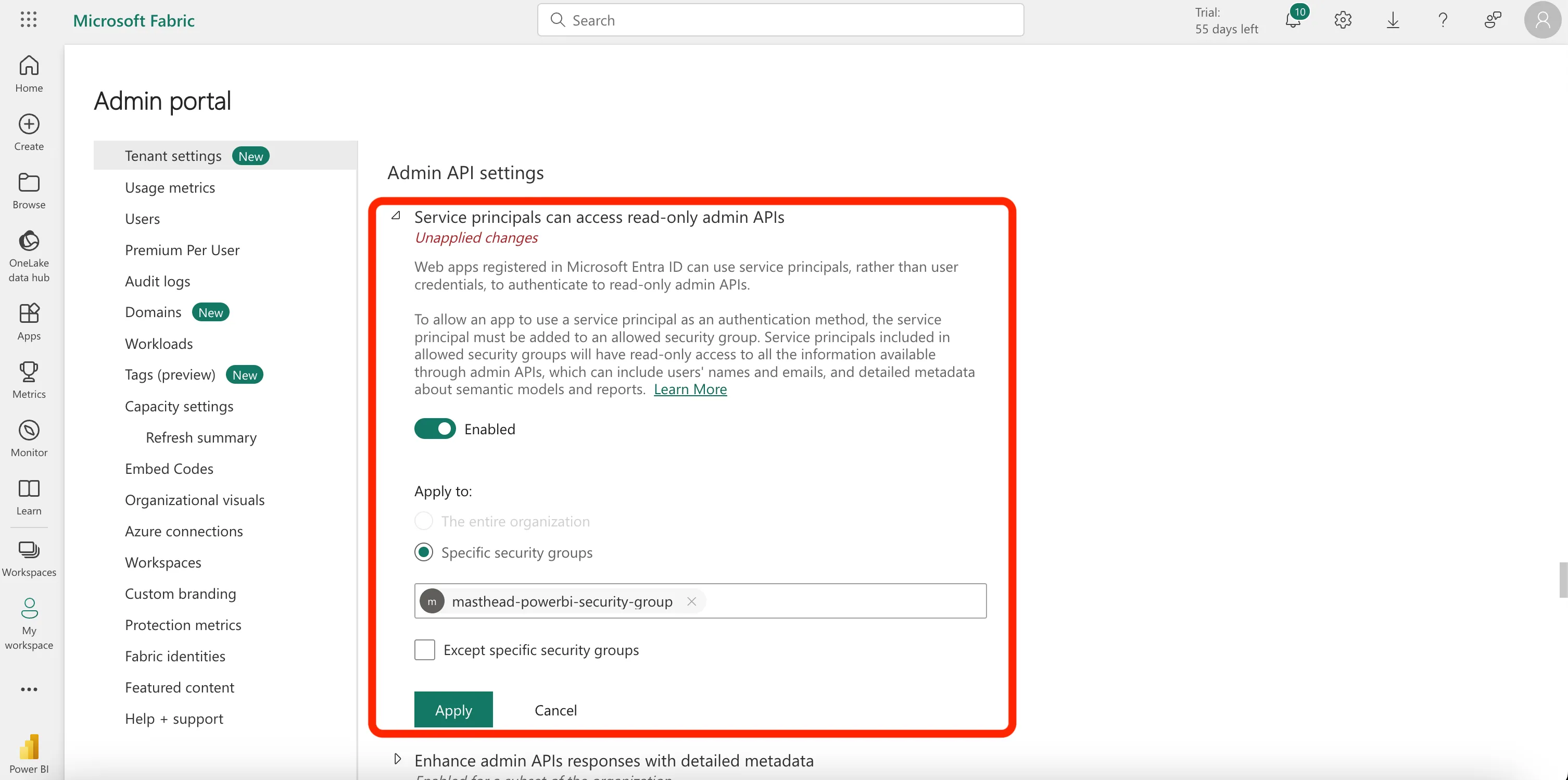
-
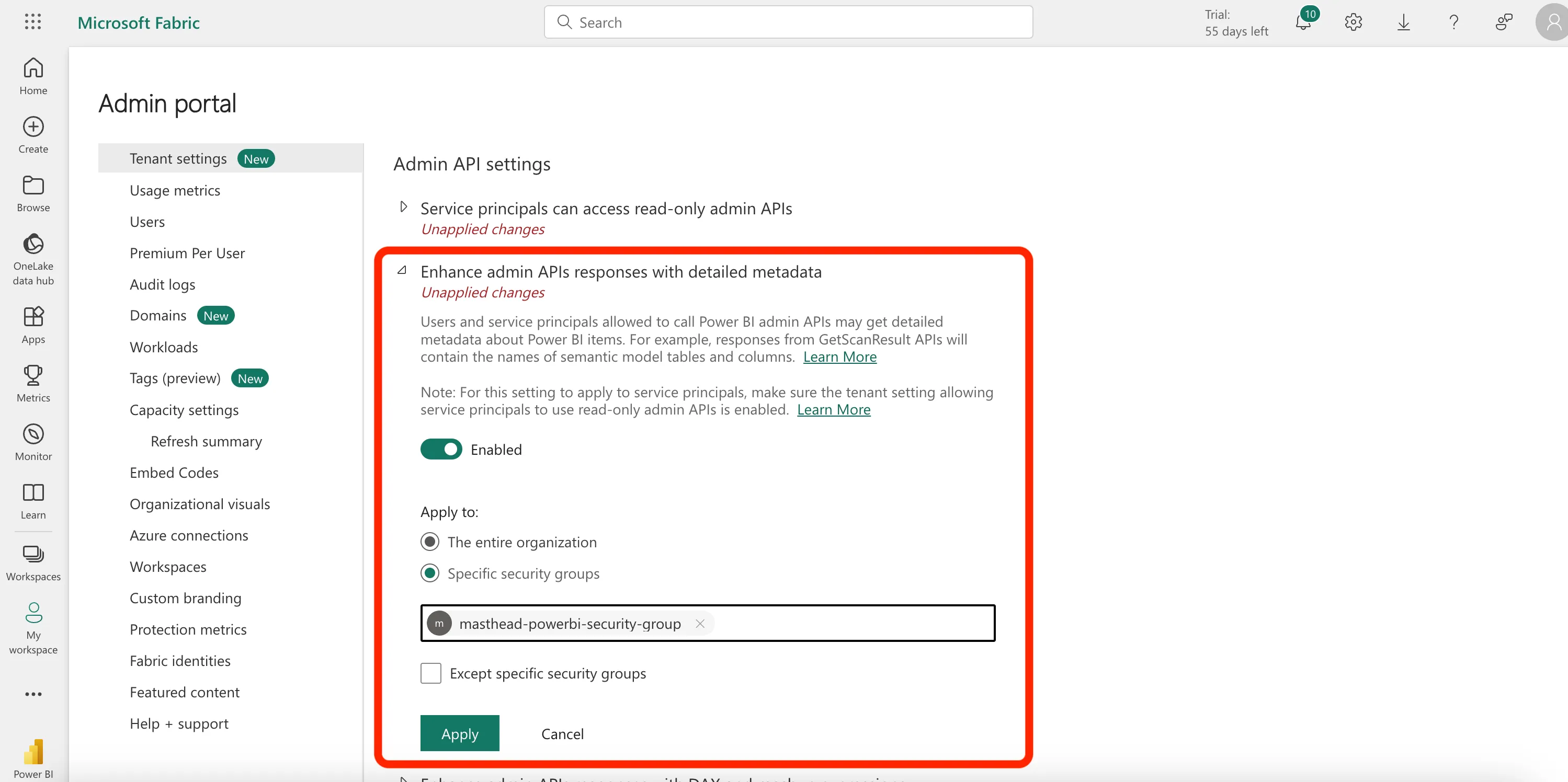
Enable ‘Enhance admin APIs responses with detailed metadata’, specify security group ‘masthead-powerbi-security-group’ and click Apply.
-
Enable Enhance admin APIs responses with DAX and mashup expressions, specify security group
masthead-powerbi-security-groupand click Apply.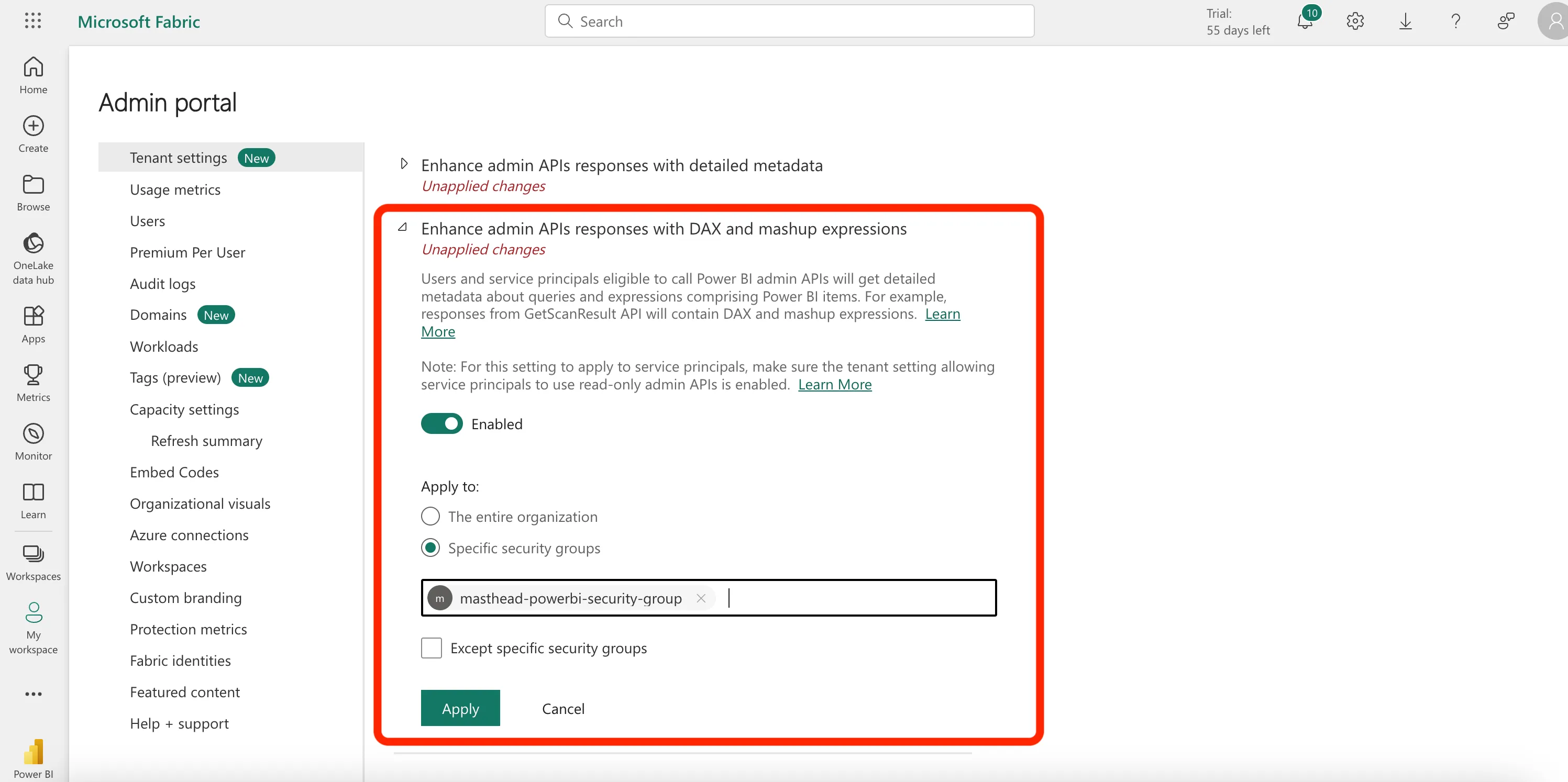
Configure Power BI integration in Masthead
Section titled “Configure Power BI integration in Masthead”Provide ‘Tenant ID’, ‘Client ID’ and ‘Client Secret’ via the Google Form.
The Masthead team sets up the integration and sends a notification once it’s complete.
The Power BI integration is now complete.