
Slack
Get incident notifications and manage the resolution status from your Slack workspace.
Create an integration
Section titled “Create an integration”1. Start the integration
Section titled “1. Start the integration”Go to Integrations page and click Connect for Slack integration.
2. Sign in to your Slack workspace
Section titled “2. Sign in to your Slack workspace”Slack might ask you to sign in and select the workspace you need if you have access to multiple workspaces.
3. Allow access
Section titled “3. Allow access”The screen appears where you select a default channel from the drop-down list and click Allow to enable access for the Masthead Data app.
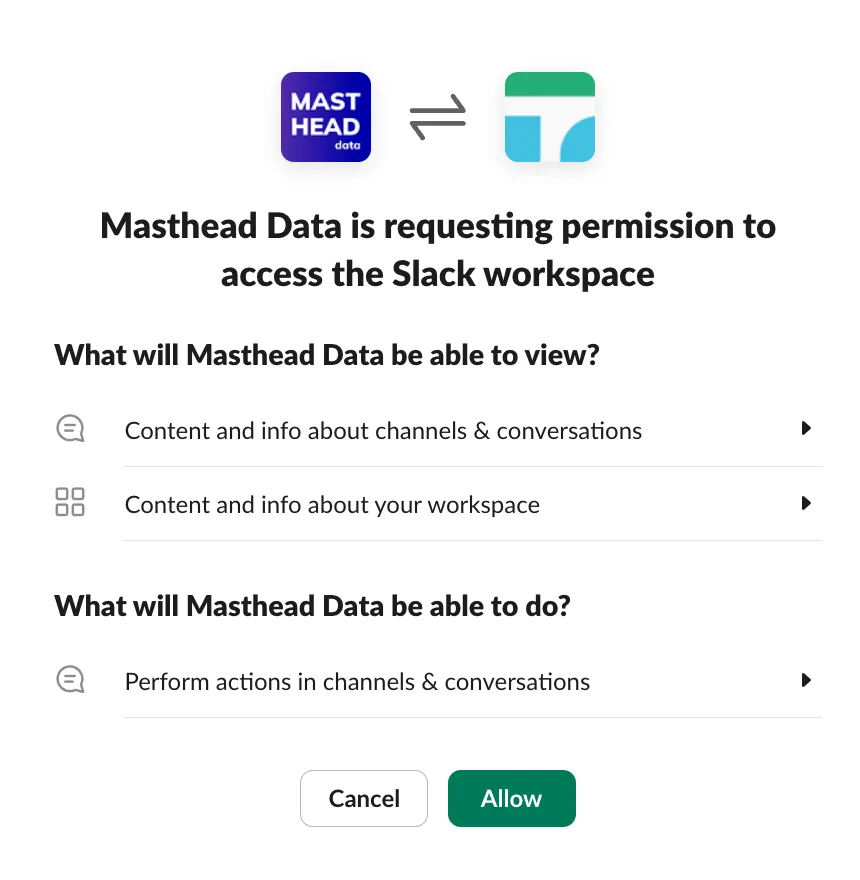
4. Slack app confirmation by workspace administrator
Section titled “4. Slack app confirmation by workspace administrator”If you don’t have administration permissions for the workspace, you may need to wait for the administrator’s approval before you can proceed.
You receive a notification in the Slack workspace as soon as the administrator approves the app and makes it available.
5. Add default notification channel for the account
Section titled “5. Add default notification channel for the account”To connect Masthead Data App to a channel you need to:
- open the channel, type
/invite @masthead_dataand hitEnter.
Or alternatively, go to channel settings, select tab Integrations. In the Apps section click Add Apps. In the list of apps in your workspace you should be able to find Masthead Data. Click Add.
A message appears in the channel:
username added Masthead Data to #channel.
The first channel with the Masthead app added serves as the default notification channel for your account.
You have completed the Slack integration.
You can assign Slack channels for notifications at the account level to act as a default channel, or at the domain level, depending on the scope of data assets you want to watch.
Personal notification in Slack
Section titled “Personal notification in Slack”You can also customize personal notifications in your Slack app -> Apps -> Masthead Data -> Notification Settings:
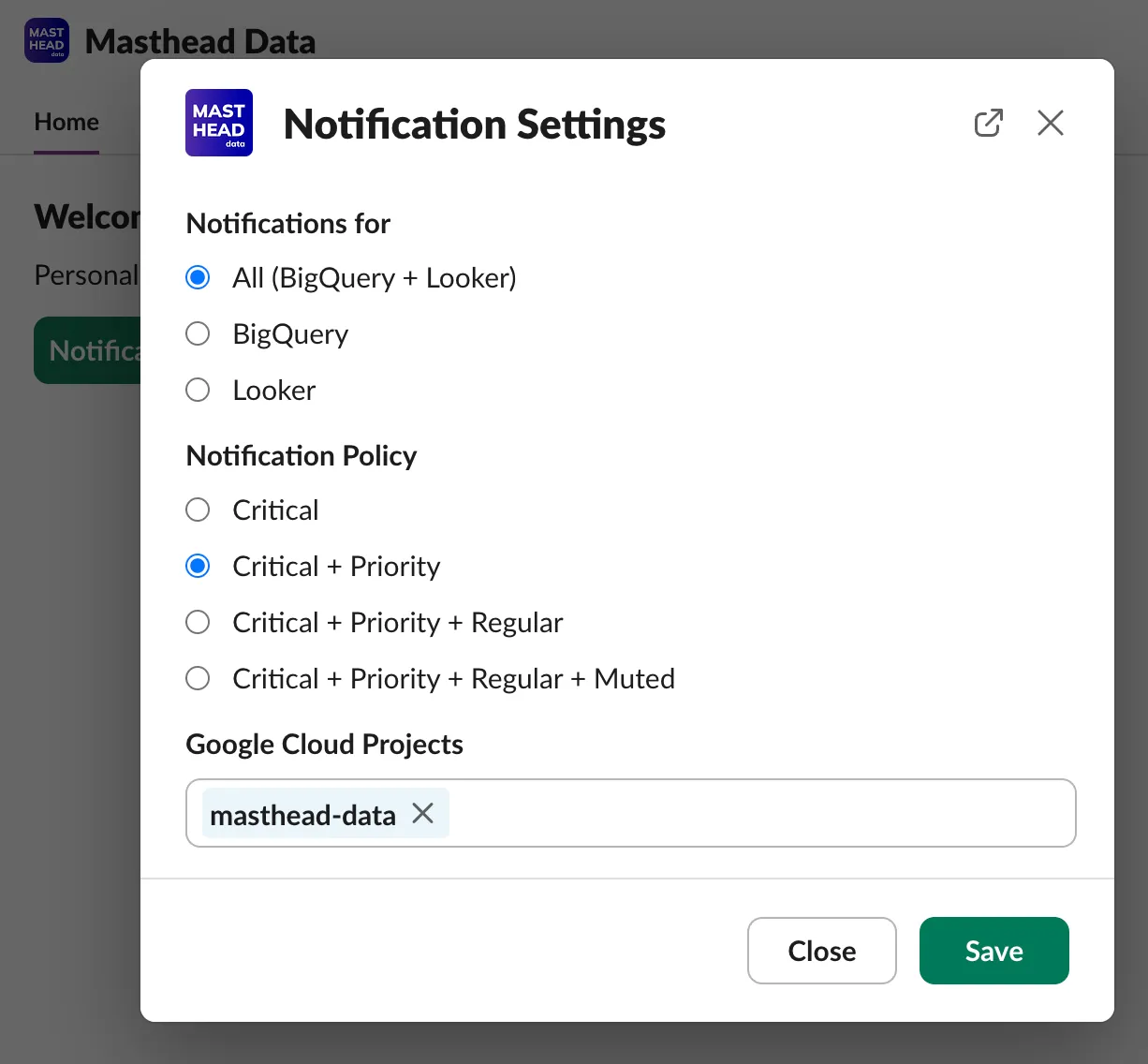
The messages appear on the Messages tab.
Notification message features
Section titled “Notification message features”- Messages related to critical data assets mention
@channel. - You can archive an incident by clicking Archive.
- You can mute notifications for a pipeline or a table if you’re aware of some expected pattern changes, just click Mute pipeline or Mute table and select the timeframe.